What Is Meta Business Suite?
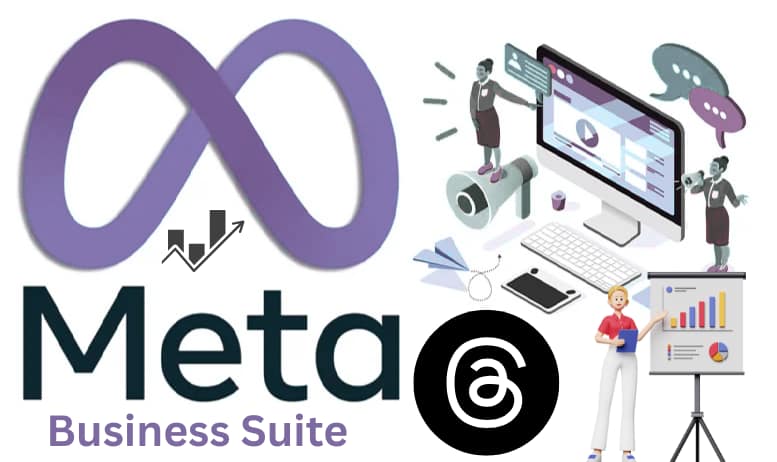
Meta Business Suite is a free all‑in‑one tool from Meta that allows you to manage your Facebook Page, Instagram account, messages, comments, posts, and basic ads from a single dashboard. Earlier you had to open different apps and interfaces for every task, but now Business Suite combines everything so that your work becomes faster and more professional…
Why Is Meta Business Suite Important?
Today almost every small and big business is present on Facebook and Instagram, but posting content, checking comments, replying to DMs, and managing ads separately for each platform quickly becomes confusing and time‑consuming. Meta Business Suite solves this problem by giving you one place where you can schedule content, reply to your audience, and read analytics. This means you can manage your social media in 20–30 minutes a day instead of 1–2 hours.
For e‑commerce stores, local shops, salons, coaching centers, and personal brands, this tool is even more useful. You can clearly see which posts bring the most reach and engagement, which audience group is most active, and what time of day works best for posting. The same data later helps you when you start running Meta Ads, because you already know which creatives and audiences perform well.
How to Access Meta Business Suite (Desktop and Mobile)
On desktop, open business.facebook.com in your browser and log in with the same Facebook account that owns your page. The first time you log in, Meta will ask you which page you want to manage; select your main business page and later you can switch pages from the top‑left corner. The desktop version gives you a wide layout with a left‑side menu and an overview in the center.
For mobile users, the official “Meta Business Suite” app is available on both the Play Store and App Store. This app is especially helpful for people who cannot sit in front of a laptop all day. From the app you can create new posts, upload stories, reply to messages and comments, and check basic insights. In simple words, you can run your online presence from your shop or home using just your phone.
Initial Setup: Connect Your Page and Instagram
First make sure your Facebook Page is properly set up – profile picture, cover photo, bio, category, phone number, email, website link, and opening hours should all be filled in. Business Suite uses these details in many places such as contact buttons, shop features, and ads, so an incomplete page can create trust issues and even problems with approvals later.
To connect Instagram, go to Settings, open the Business Assets or “Instagram accounts” section, and click “Connect.” Log in with your Instagram username and password and approve the connection. Once both accounts are linked, you can create the same or different posts and stories for Facebook and Instagram from one place. During ad creation you can also show the same creative on both platforms, which increases reach and often improves results.
Dashboard Overview: What You See on the Home Screen
- When you open Meta Business Suite, the first thing you see is the Home or Overview screen, which gives you a quick snapshot of your current performance. You can view recent notifications, latest posts, and basic insights such as reach and engagement for the last 7 or 28 days. If a post is getting unusual comments or a campaign budget is finishing quickly, you can catch it here in seconds.
- On the left‑hand side you will find sections like Inbox, Planner, Posts & Stories, Ads, Insights, and All Tools. From the Home screen you can quickly jump into any of these areas. On desktop these sections appear as larger blocks, while on the mobile app they appear as compact cards, but the main functions are the same: create content, reply to people, and manage ads without switching between multiple apps.
Using Inbox: Manage All Messages and Comments in One Place…
The Inbox section in Meta Business Suite pulls together Facebook messages, Facebook comments, and Instagram DMs into one unified view. This means you no longer need to open each platform separately; you can reply to every customer from a single screen, saving time and reducing the chances of missing an important enquiry. Each message also shows the person’s name and previous conversation history, so your reply feels more personal and professional.
Inside the Inbox you can create quick replies or saved templates for common questions such as pricing, delivery details, or appointment booking. Instead of typing the same answers again and again, you can send a friendly response with just a few clicks. You can also mark conversations as “Done,” “Follow up,” or apply custom labels, which helps you track hot leads, confirmed orders, and support cases separately.
If you later connect WhatsApp Business or other supported channels, those messages can also appear inside the same Inbox. For small businesses and solo creators, this unified messaging system works like a lightweight CRM, helping you build stronger customer relationships and close more sales without using extra tools.
Understanding Insights and Analytics in Meta Business Suite…
- The Insights section in Meta Business Suite gives you detailed analytics for both your Facebook Page and Instagram account. Here you can track metrics such as reach, impressions, profile visits, website clicks, follower growth, and overall engagement for any date range you choose. This makes it easy to compare performance week‑to‑week or month‑to‑month and see whether your content strategy is moving in the right direction.
- You can also review which posts, reels, or stories performed the best based on reactions, comments, shares, and link clicks. These top‑performing posts are ideal to reuse in future campaigns or turn into Meta Ads, because your audience has already shown strong interest in them. Audience insights like age, gender, and location tell you who is actually engaging with your brand, so you can adjust your content and ad targeting to match the most valuable segments.
Managing Ads from Meta Business Suite (Basic Promotions)…
Meta Business Suite?
Meta Business Suite also gives you a simple way to create and manage basic ads without opening the full Ads Manager. In the “Ads” or “Promotions” section, you can boost existing posts or set up quick campaigns with goals like getting more website visitors, more messages, or more page likes. This simplified workflow is very helpful for beginners who want results but are not yet comfortable with all the advanced settings in Meta Ads Manager.
When you create a promotion from Business Suite, you choose your objective, audience, budget, and duration in just a few steps. Meta will often suggest automatic placements and a recommended daily budget based on your page activity. While this method does not offer every advanced feature, it is enough to start testing what type of creatives and audiences work for your business before you move into full conversion campaigns inside Ads Manager.
Adding Team Members and Assigning Roles…
- If you work with a team, Meta Business Suite lets you add other people and give them specific roles instead of sharing your main login. In the business settings, you can invite team members by email and decide which assets they can access, such as Facebook Pages, Instagram accounts, or ad accounts. This keeps your business secure while still allowing writers, designers, or ad managers to do their work.
- You can, for example, give a content writer permission only to create and edit posts, while your ads specialist gets access to campaigns and billing. As your business grows, this role‑based access makes collaboration much easier and prevents accidental changes to sensitive settings. You always remain the admin and can remove or change access at any time if someone leaves the team.
Best Practices for Using Meta Business Suite Effectively…
To get the most value from Meta Business Suite, treat it as your daily control centre for Facebook and Instagram. Spend a few minutes each day checking the Inbox, reviewing Insights, and making sure that posts are scheduled for the coming days. Consistent activity and quick replies improve your reach, build trust with your audience, and often lead to more conversions.
At least once a week, review which posts and stories performed the best and note common patterns such as topics, formats, or posting times. Use those winners as a base for future content and for Meta Ads campaigns. Over time this habit will turn your Business Suite data into a practical roadmap, showing you exactly what works for your brand and where you should invest more time and budget.
FAQs About Meta Business Suite
Q1. Meta Business Suite free to use?
Yes, Meta Business Suite is completely free for all Facebook and Instagram business accounts. You only pay when you run paid ads or promotions from your ad account.
Q2. Do I need Meta Business Suite if I already use Meta Ads Manager?
Meta Ads Manager is only for creating and managing ads, while Meta Business Suite combines posts, messages, insights, and basic ads in one place. Using both together gives you better control over daily content and paid campaigns.
Q3. Can I manage multiple pages and Instagram accounts in Meta Business Suite?
Yes, you can manage several Facebook Pages and Instagram accounts from the same dashboard, as long as your profile has admin or editor access to those assets.
Q4. Does Meta Business Suite work on mobile phones?
Yes, the official “Meta Business Suite” app for Android and iOS lets you create posts, upload stories, reply to messages, check insights, and run simple promotions directly from your phone.
Q5. Is Meta Business Suite enough for small businesses?
For many small businesses, Meta Business Suite is enough to plan content, handle customer communication, and run basic ads on Facebook and Instagram. Extra tools are only needed if you want to manage many other platforms or require very advanced reporting.
Note:
- If you enjoyed this guide and want to learn more about digital marketing and Meta tools, visit my Blog page for more articles and tutorials.
- If anything is not clear or you still have questions, feel free to contact me through the contact form or comments. I read every message and will reply as soon as possible.